Setting up
Pre-requisites:
- Visual studio should be installed Download Visual Studio Tools - 'https://visualstudio.microsoft.com/downloads/'
- Git should be installed 'https://git-scm.com/downloads'
- Have access to Protrak environment.
- Download and install Protrak plugin 'https://marketplace.visualstudio.com/items?itemName=Prorigo.ProtrakExtension'
Setup for Protrak in Visual Studio studio:
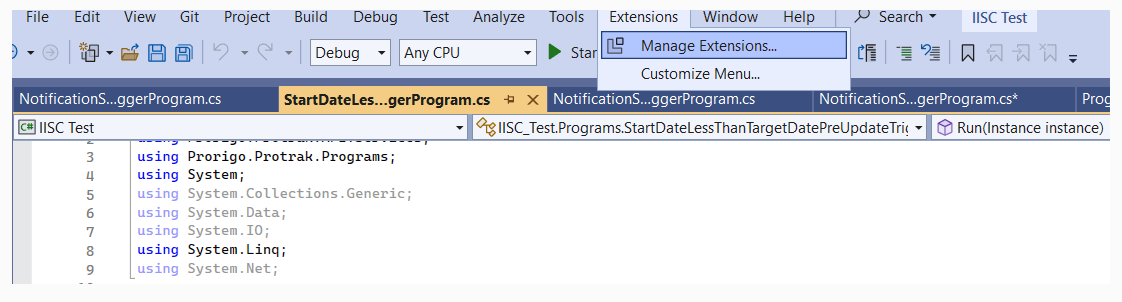
- Open visual studio, then click on Extension >> Manage Extension
- Popup will be shown search for the Protrak Extension in the search bar of the popup
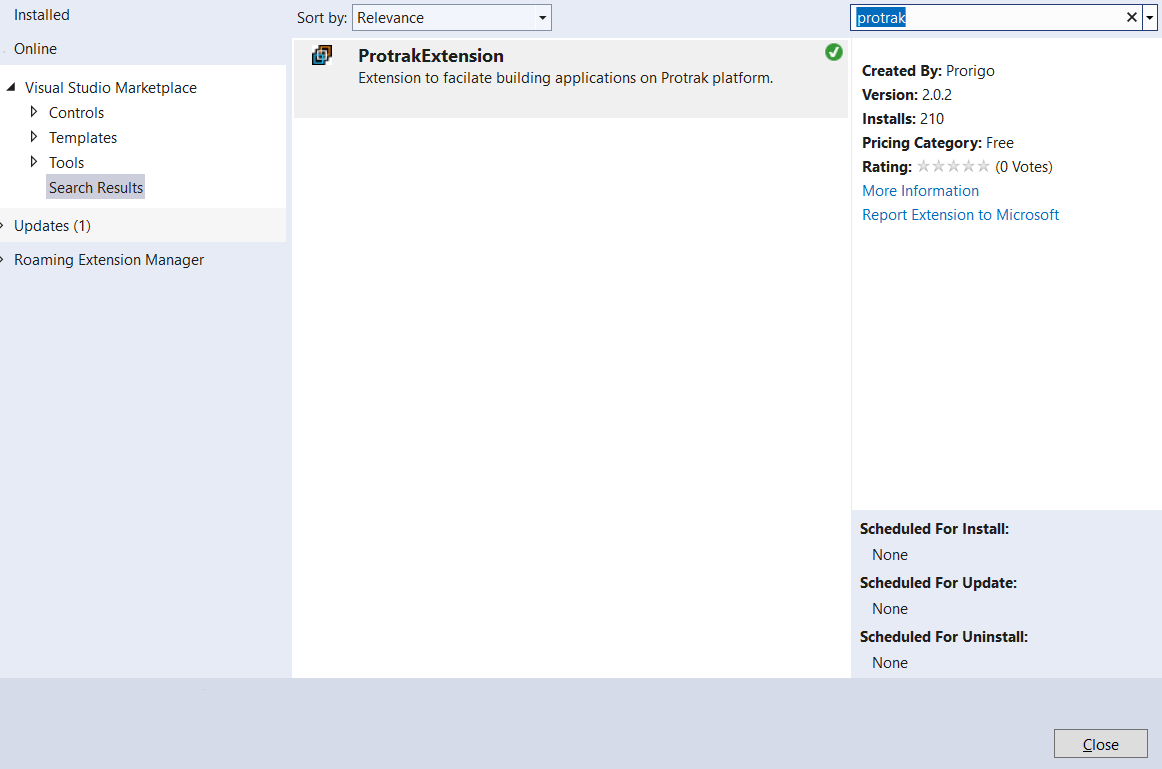
- Click on the Protrak Extension and install the Extension.
- After Installation of the extension close the visual studio and re-open visual studio
- Protrak Extension will be installed.
- To verify the extension and version installed open existing project.
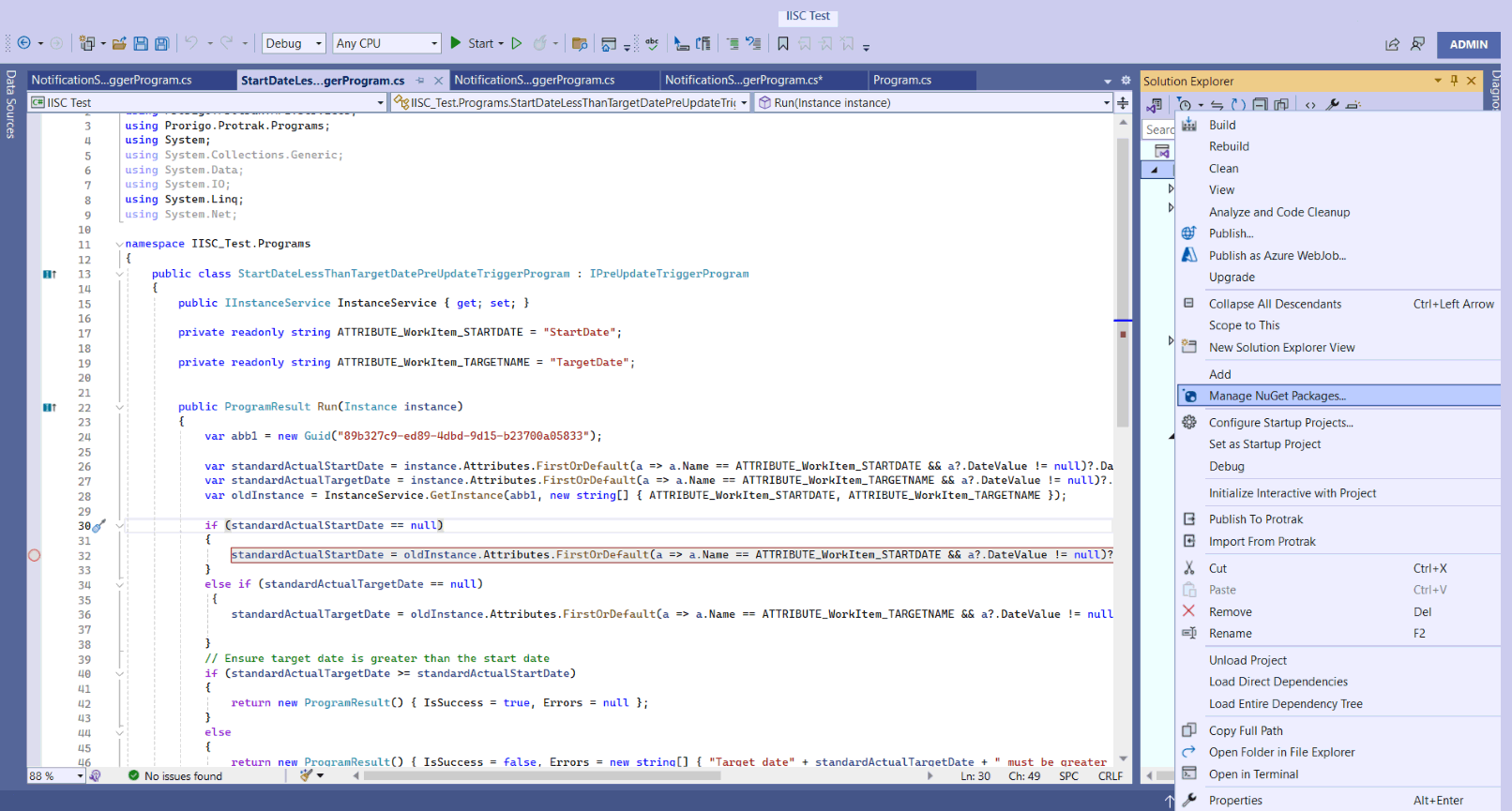
- Right click on project
- Popup will be shown click on manage NuGet Packages
- You can see the installed Extension click on Prorigo.Protrak.Tool
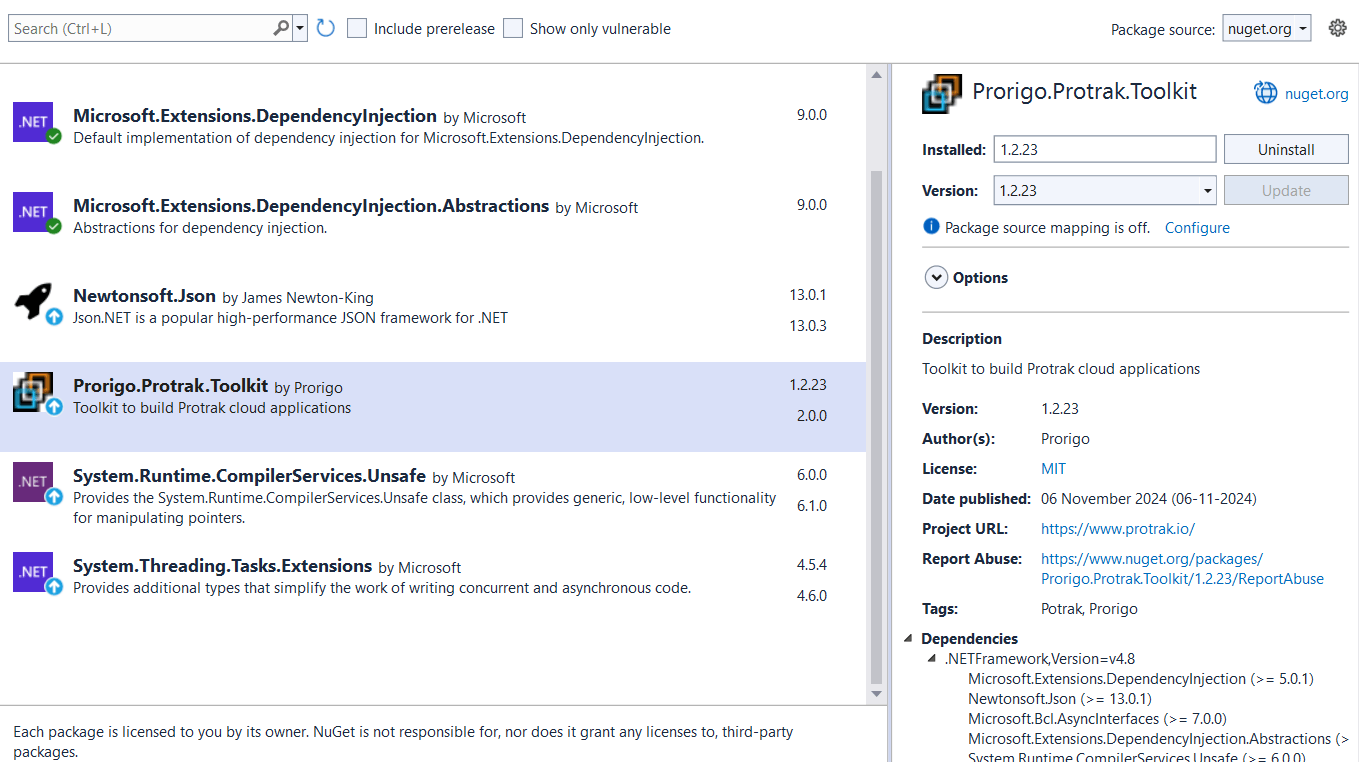
- You can see the toolkit information of the installed Toolkit version
Create new project in Visual Studio studio
-
Open VS studio, select create new project >> search protrakproject >> give name >>create.
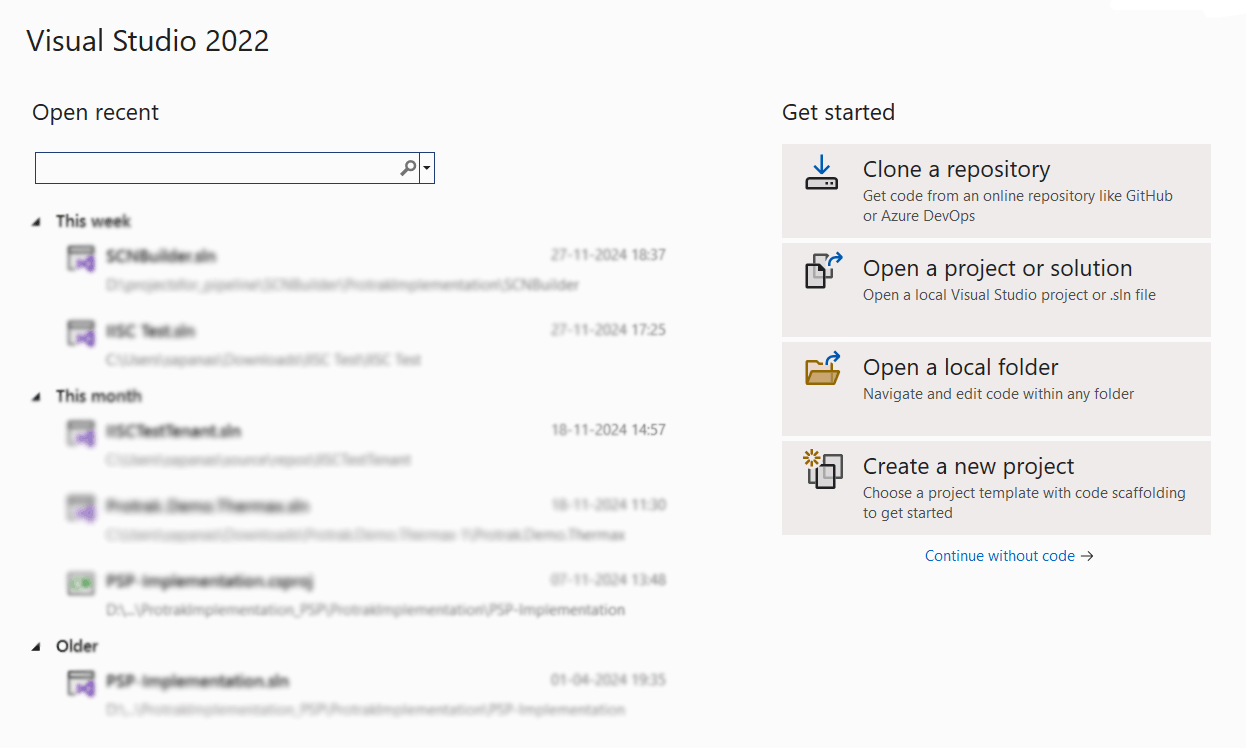


Update Protrak Extension version in Visual Studio
-
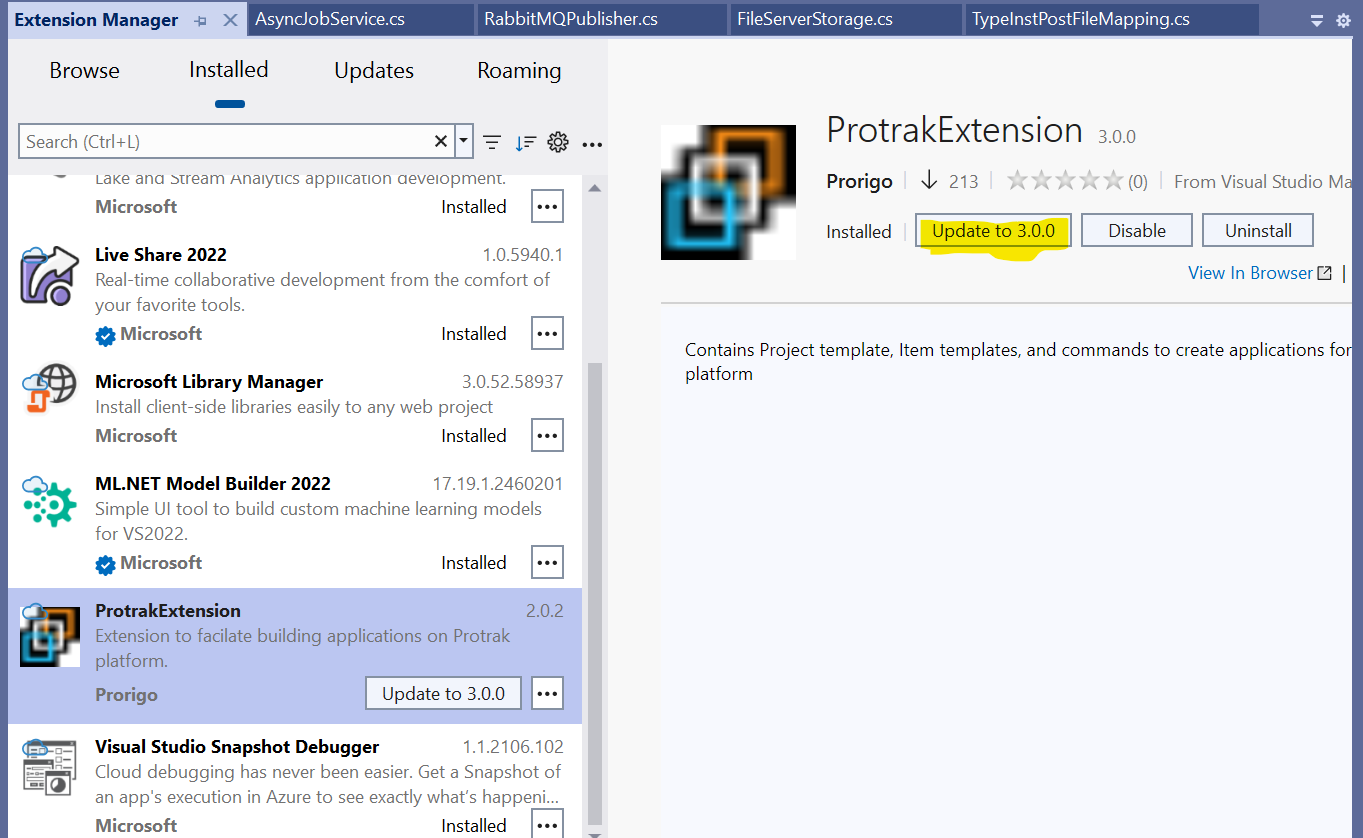
If We have protrak extension of older version then upgrade it.
-
Open Visual Studio -> Right click on Solution -> Manage NuGet Packages -> Search Protrak Extension in Installed tab -> It will show an option to Update to newer version if update is available. Click on Update to new version -> Close Visual Studio -> Proceed for installation process.

-